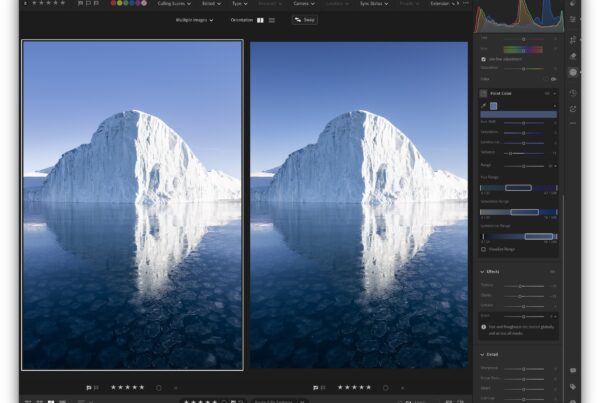
Adobe Lightroom is a wildly popular tool that many photographers use, amateur & professional alike. But what is odd, is that there are two versions of Lightroom with seemingly the same purpose. So which version should you be using? Choosing the right version of Lightroom can shape your entire photography experience, yet many landscape and wildlife photographers still feel unsure about the difference between Lightroom Classic and Lightroom Cloud. After years of shooting in remote places across Iceland and Greenland, and helping countless workshop participants streamline their workflow, I have seen firsthand how much easier and more enjoyable editing becomes when you switch to Lightroom Cloud. Whether you are a passionate hobbyist or a full-time professional photographer, this modern version of Lightroom offers a faster, simpler, and far more flexible way to manage and edit your images. In this blog, I’ll explain why it has transformed my own workflow and why it might be the best choice for you too.
Disclaimer: To be completely transparent and get any doubt out of the way I want to share that I am not affiliated with Adobe in any way. I am simply I happy user who loves Lightroom (Cloud).
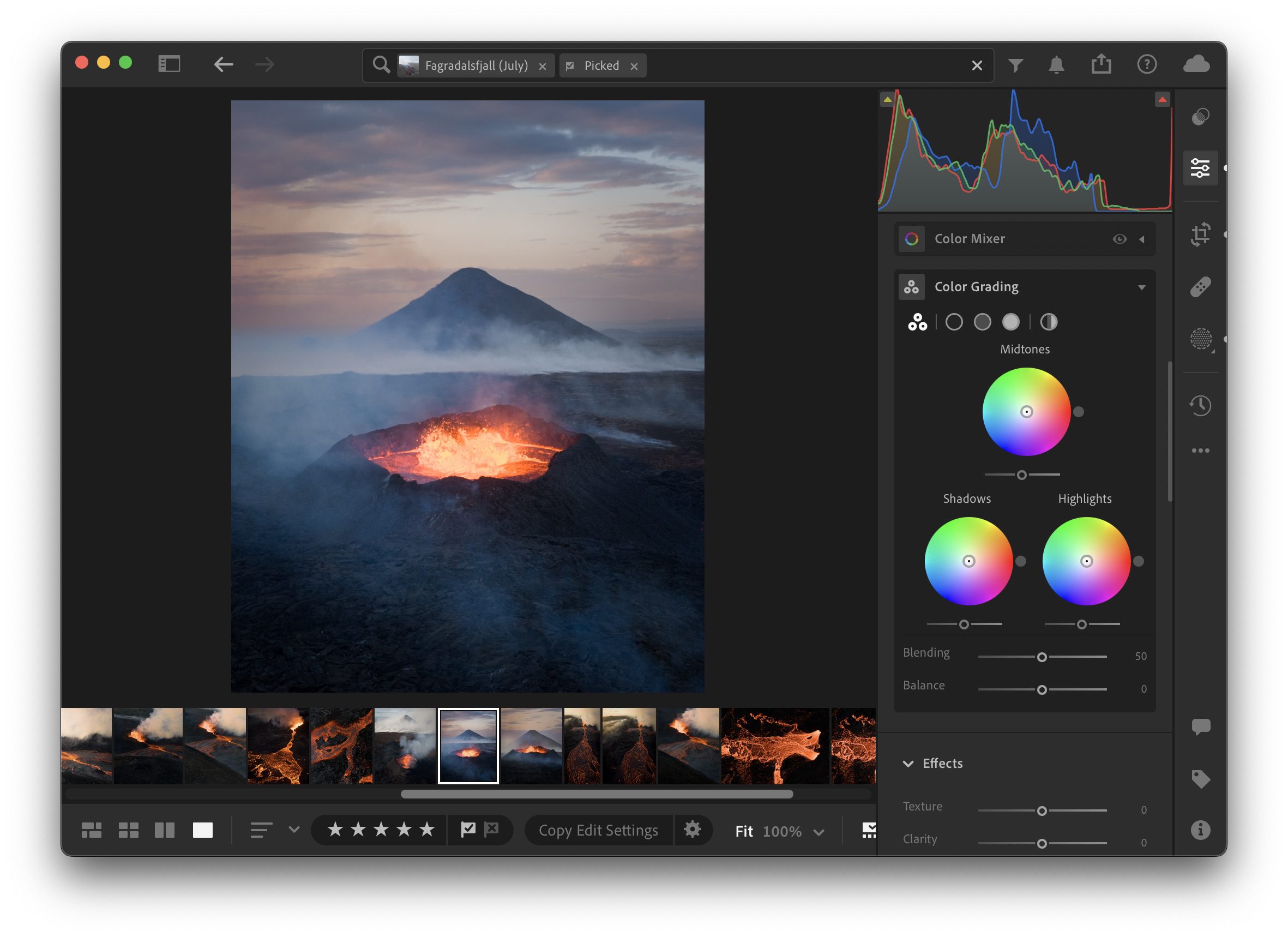
Lightroom (Cloud) has evolved rapidly over the years and has complete feature parity for almost all photographers, whether you are a pro or an amateur.
The Turbulent Launch of Lightroom (Cloud)
It’s not the first time I publish a blog about the use of Lightroom (Cloud) and how it is not the awful software some photographers make it out to be. But why do some people seem to think Lightroom (Cloud) is a lesser version?
While the most commonly used photo editing software, by professional photographers, is still Adobe Lightroom Classic today. It has been around since 2007, when it launched as a barebones photo editing and cataloguing application. I say “barebones” because it was very limited in comparison to what you can use today. However, it quickly grew to into a standard in the industry, with no other comparable products on the market other than Apple’s Aperture which was discontinued not long after.
In 2017 Adobe launched a new, much more performant version of Lightroom, which was branded Lightroom CC (CC meaning Creative Cloud) which has since then been rebranded to Lightroom. This new version was built on a new & faster codebase and promised vastly better performance. Better performance is something the Lightroom community had been wanting for years as Lightroom Classic would even grind the most powerful systems to a complete halt.
However, at launch Lightroom (Cloud) was lacking a lot of features compared to Classic. It didn’t have features such as HDR & Panorama merge, print module, geotagging, and more. For that reason, it instantly received an overwhelming amount of discontent and, in some cases, even hate. Some photographers mocked this “lesser” version (and still do) but were also worried this “lesser” version would replace Lightroom Classic and Adobe would force them to move over regardless of whether it had feature parity or not. This sentiment still carries over today, which I find increasingly bizarre given how many improvements have been made.
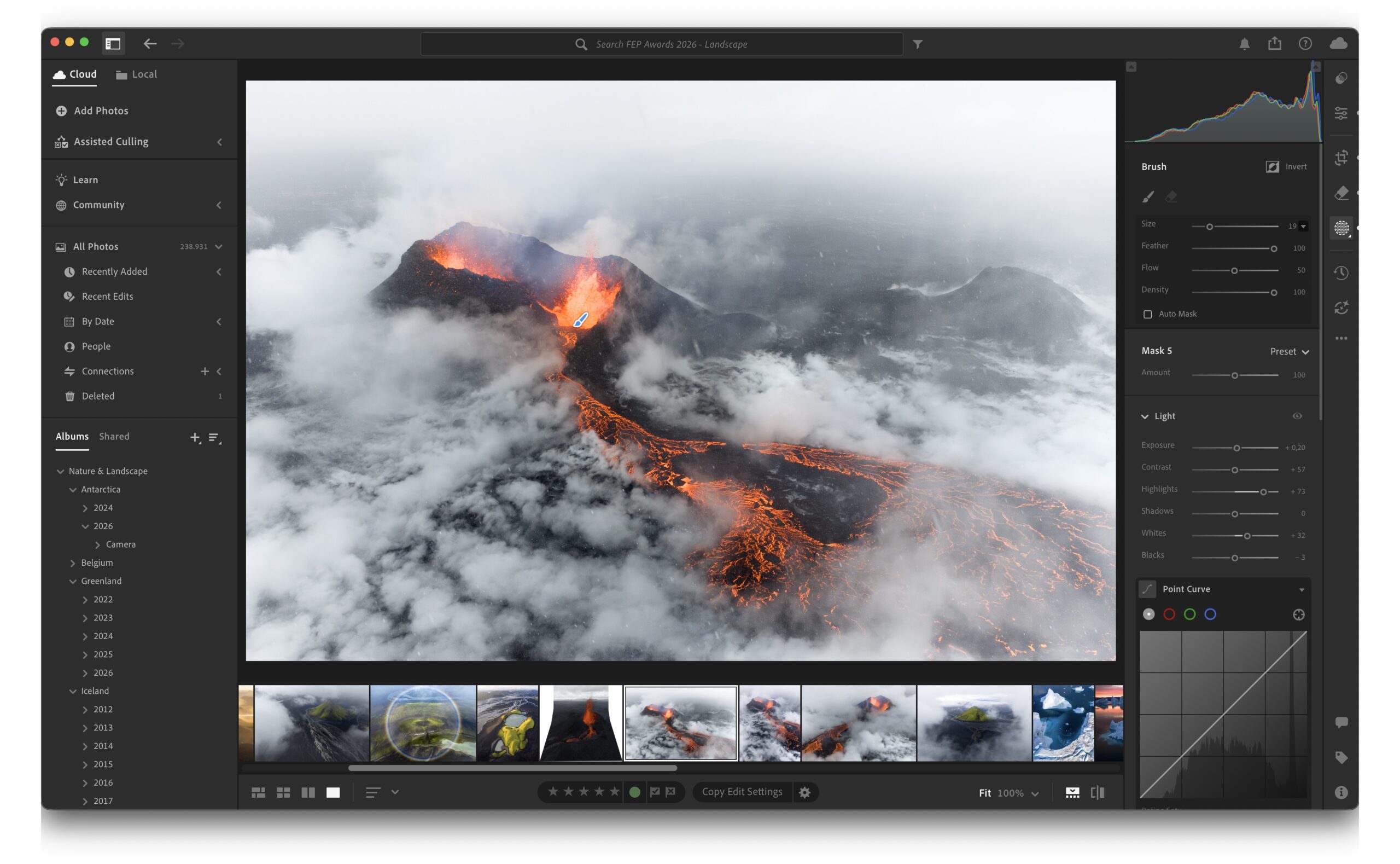
While Classic is still wildly popular amongst professional photographers, Cloud is the most popular version of Lightroom globally.
A Photographer’s Perspective On The Lightroom Divide
Whether you’re a professional photographer or someone who simply enjoys capturing the occasional landscapes and wildlife, your time in the field (and at home) is precious. You want a workflow that is reliable, simple, and gives you more freedom to focus on the creative side of photography. For years, many photographers have relied on Lightroom Classic, managing large catalog files, external drives, and manual backups. That’s how I started too. But over time, I switched to Lightroom (Cloud), and it completely changed the way I work.
As someone who spends months each year photographing in remote areas of Iceland and Greenland, I need a setup that works everywhere, whether I’m editing from a tiny hut, a sailboat in a remote fjord, or my airplane seat. Lightroom (Cloud) gives me that freedom, and it works just as well for photographers who shoot closer to home.

Even when I am in one of the most remote corners of Greenland, I can still do everything I need with Lightroom (Cloud).
Lightroom Classic Vs. Lightroom (Cloud): What’s The Difference?
With every update the differences between Lightroom Classic and Lightroom (Cloud) disappear and today there is almost feature parity between both versions. However, the focus of both versions is different.
- Lightroom Classic is the long-standing desktop version that stores everything locally. It’s powerful, but its structure hasn’t really changed in over a decade. It has some integration with Adobe’s cloud but is not as tightly integrated as the newer Lightroom (Cloud). Lightroom Classic has an older user interface which is not always as clear & easy to use.
- Lightroom (Cloud) is the newer, modern version designed around simplicity and accessibility. When using the Cloud side of the application, your photos are automatically backed up and synced across all devices, from desktop to tablet to phone. But, if you desire, you can also still use this version completely offline. Because Lightroom (Cloud) has been completely redesigned from the ground up, I have found that the layout and usage is a lot more straightforward and understandable.
In short: both versions use the same editing engine and offer professional-quality results. The main difference lies in how they manage your images and how easy it is to keep everything organised.
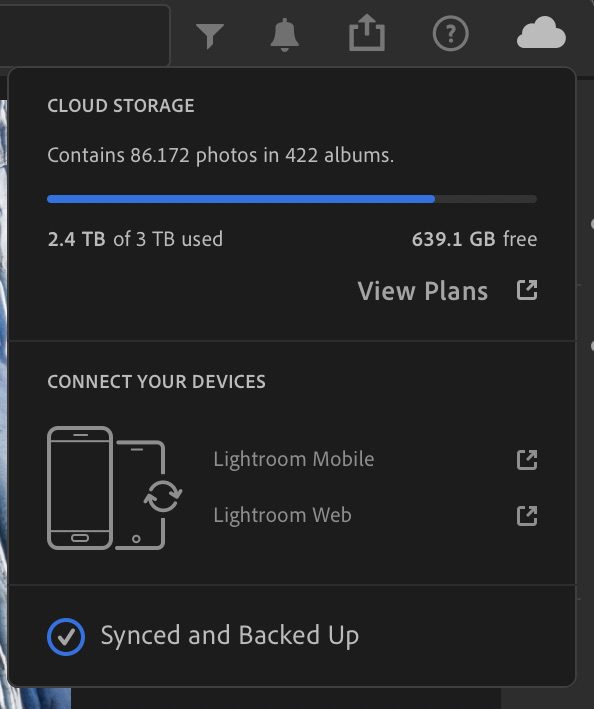
With Cloud you get access to the Adobe Cloud where you can store all of your images but…
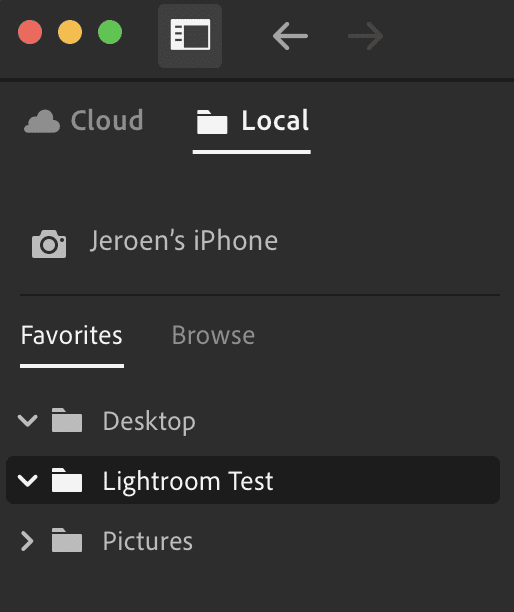
… you can also still work offline completely if you want to.
Why Lightroom (Cloud) Works Better for Landscape and Wildlife Photographers
There are many reasons why I think most photographers would be much better off with Lightroom (Cloud) but below are a few of the most important ones I want to highlight.
1. Automatic Backup & Sync Across Devices
As soon as you drag your images into Lightroom (Cloud), there is nothing more to be done other than editing. The second your laptop or iPad connects to the internet, Lightroom will automatically back up all your photographs to the cloud. No more worrying about hard drives, backup routines or complex importing procedures. The moment you import your photos, they are uploaded and available on every device. That means you can sort, edit, and share from basically anywhere. If you travel using a laptop or iPad and have a desktop at home, your desktop with Lightroom will also automatically download the files you added on-the-go. This gives you a lot of flexibility as you can switch between devices, depending on what situation you are in. You could start an edit in your sofa on an iPad and then finish it on your desktop.
Another great real world example is when I traveled to Antarctica in 2024. Thanks to using hotel Wi-Fi, I was able to backup all my photographs on-the-go so by the time I made it back home, my photographs were already safe and sound on my desktop computer – with all the edits I did.
2. A Simpler & More Modern Interface
Because Lightroom (Cloud) was built and designed from the ground up, it has a clean and easy to navigate user interface that functions much more logically compared to Classic. It removes the clutter and keeps only what you need, which makes it ideal for photographers of all levels. Especially if you’re just starting out, it feels approachable rather than overwhelming. But also, if you’re more experienced, it helps you stay efficient without distractions while still having access to 95% of Lightroom Classic’s features. Popular features such as the modern masking tools, AI Denoise, and more are also available in Lightroom (Cloud).
While not every single function from Classic has made its way yet to Cloud for the vast majority of photographers out there, it already has feature parity. Not only that, some of the functionality is much better thought out. One of the examples that comes up regularly when I use Lightroom Classic on one of my workshop participants’ computers is masking. The masking UI in Classic is so incredibly confusing to the point where every time I use it, I find myself confusing global edits with edits made in the mask. There have been so many times where I show participants my workflow which then consequently made them switch between versions due to the clearer and much simplified workflow.
3. Smoother Performance & Reliability
Lightroom (Cloud) feels faster and more stable compared to Classic. But more importantly, there is no bulky catalog file to manage and no risk of losing edits if such a catalog file fails, a problem I have seen more than once with clients. That also means there is no need to consider backups of your Catalog files. Lightroom (Cloud) is perfect for photographers who want to spend less time worrying about reliability, storage and more time taking pictures & editing them.
4. Easier Organisation & Smart Search Capabilities
Lightroom (Cloud) uses smart search powered by AI. You can type words like “mountain,” “seal,” or “northern lights,” and it will instantly find the right photos, even if you never added keywords. Having this ability takes away the time-consuming process of tagging images. Is it perfect and accurate 100% of the time? No, definitely not but it is more than good enough to never have to worry about adding keywords to images again. This makes it much easier to manage growing photo collections, whether you’re editing after a weekend hike or sorting years of travel images.
5. The Mobility Aspect
If you are a user who likes editing on multiple devices, whether you combine a desktop with a laptop or you love editing on an iPad, Lightroom (Cloud) is the best option out there. Whichever device you use, you can just open the application and continue your editing process. There is no need to remember to take your hard drive full of images or catalog files. And the best part is that you don’t even need internet or a powerful computer. By default, Lightroom (Cloud) keeps a library of Smart Previews which you can use to edit on-the-fly which means you can do your edits on a base level iPad or even your iPhone for example.
I sometimes like editing my images on an iPad whilst on a plane because it is much easier to handle in a narrow seat – especially when the person in front of you decides to recline their seat. When I get off the plane, I just connect my iPad to Wi-Fi and it will sync all my changes to my other devices without needing to do anything at all.
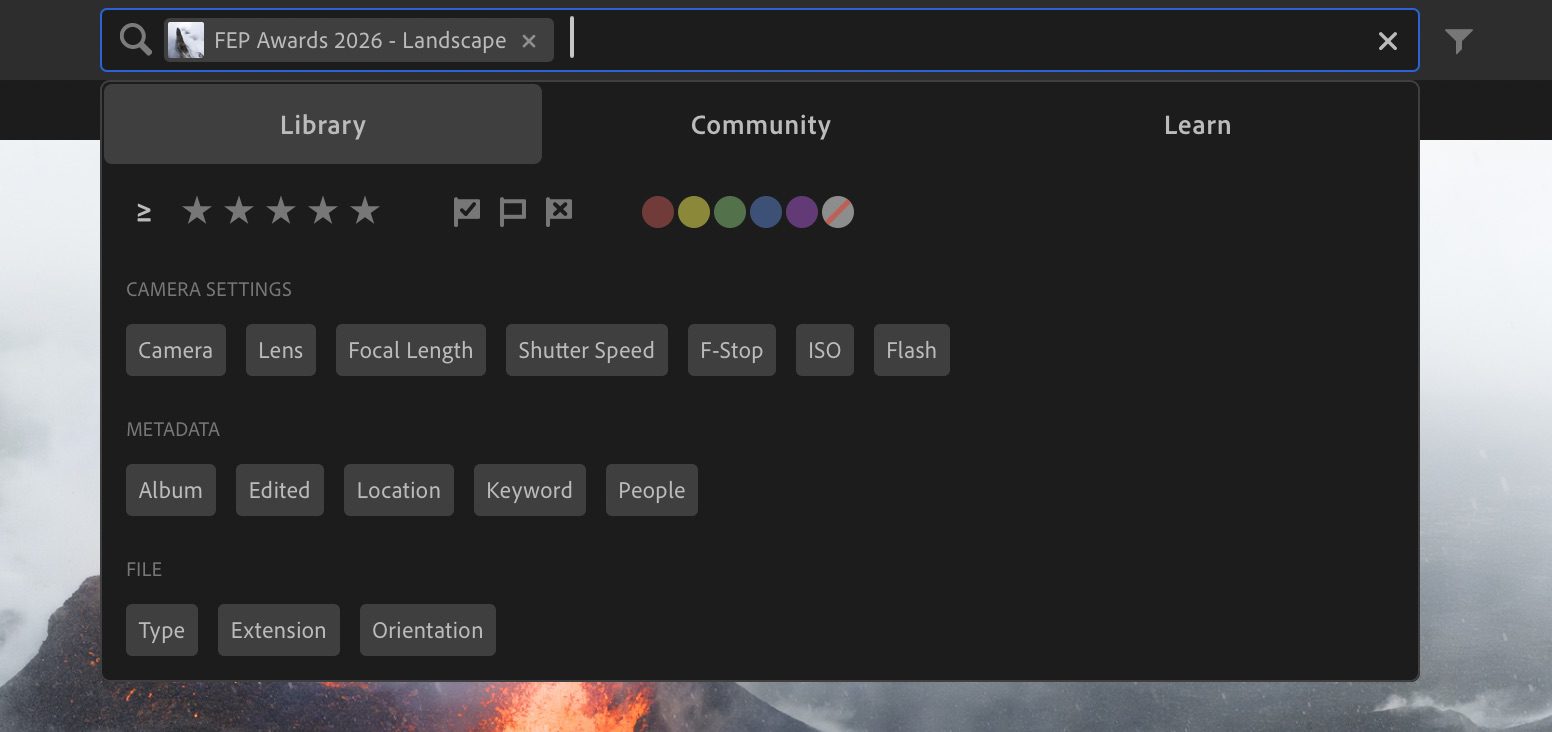
One of my favourite features in Cloud is that I can easily search for anything I want, even when I didn’t tag images with keywords. In fact, I haven’t used keywords in several years because the AI powered search in Lightroom (Cloud) is so useful.
The Most Common Misconceptions About Lightroom (Cloud)
Over the years I have heard numerous reasons why people didn’t think of Lightroom (Cloud) as a serious alternative to Lightroom Classic. Most often it is people who still think of Lightroom (Cloud) when it was version 1.0. Therefore, I thought it would be interesting to list some of the most common ones I have heard with some brief feedback to them.
“It’s Not For Serious Photographers”
This is one of the biggest myths in my eyes and, simultaneously, I am also the proof that this is a lie. Lightroom (Cloud) uses the exact same editing tools and RAW engine as Classic. It delivers identical quality, just in a cleaner, more streamlined and more modern package. I use it, and have used it for years, for all my professional work. But, even if you are not a professional, it’s equally suited to anyone who simply values a smooth, simple editing experience.
“I Will Lose My Originals”
This has a simple answer: you won’t. Lightroom (Cloud) stores your full-resolution photos safely in the cloud and allows you to keep copies locally if you prefer. You can even choose which albums stay on your device for offline use. I work in such a way that I keep my entire library as an offline copy on my NAS so when I am at home, I work off my NAS while Lightroom also stores everything in the cloud. You can also choose to work offline completely, and only keep that which you need remotely in the cloud. There are so many possibilities.
“It Doesn’t Have All The Features I Need”
Lightroom (Cloud) has grown rapidly over the years and it now includes nearly all the key tools from Classic. Unless you depend on advanced plugins or the Print module, you’ll find everything you need, and likely a much simpler way to use it.
“It’s Too Expensive Because Of Cloud Storage”
Another common concern is that Lightroom (Cloud) will cost more due to storage fees. In reality, the base subscription includes ample space for most photographers, and additional storage can be added as needed. If you manage your images efficiently, especially by exporting finished work and keeping only what you need in the cloud, it’s often comparable in cost to maintaining multiple drives and backup systems. But most importantly, you can use Lightroom (Cloud) completely offline too, allowing you to complement it with your own cloud solution, so there is in my eyes really no argument in terms of cost.
“It Won’t Work Well Without Fast Internet”
While Lightroom (Cloud) relies on an internet connection for syncing, it also works perfectly offline. You can store Smart Previews or full-resolution copies on your device, edit anywhere, and sync changes once you’re back online. I often work with no internet, or slow internet, in Iceland’s highlands or even Greenland, and my workflow never stops. Lightroom quietly syncs everything once I reconnect.
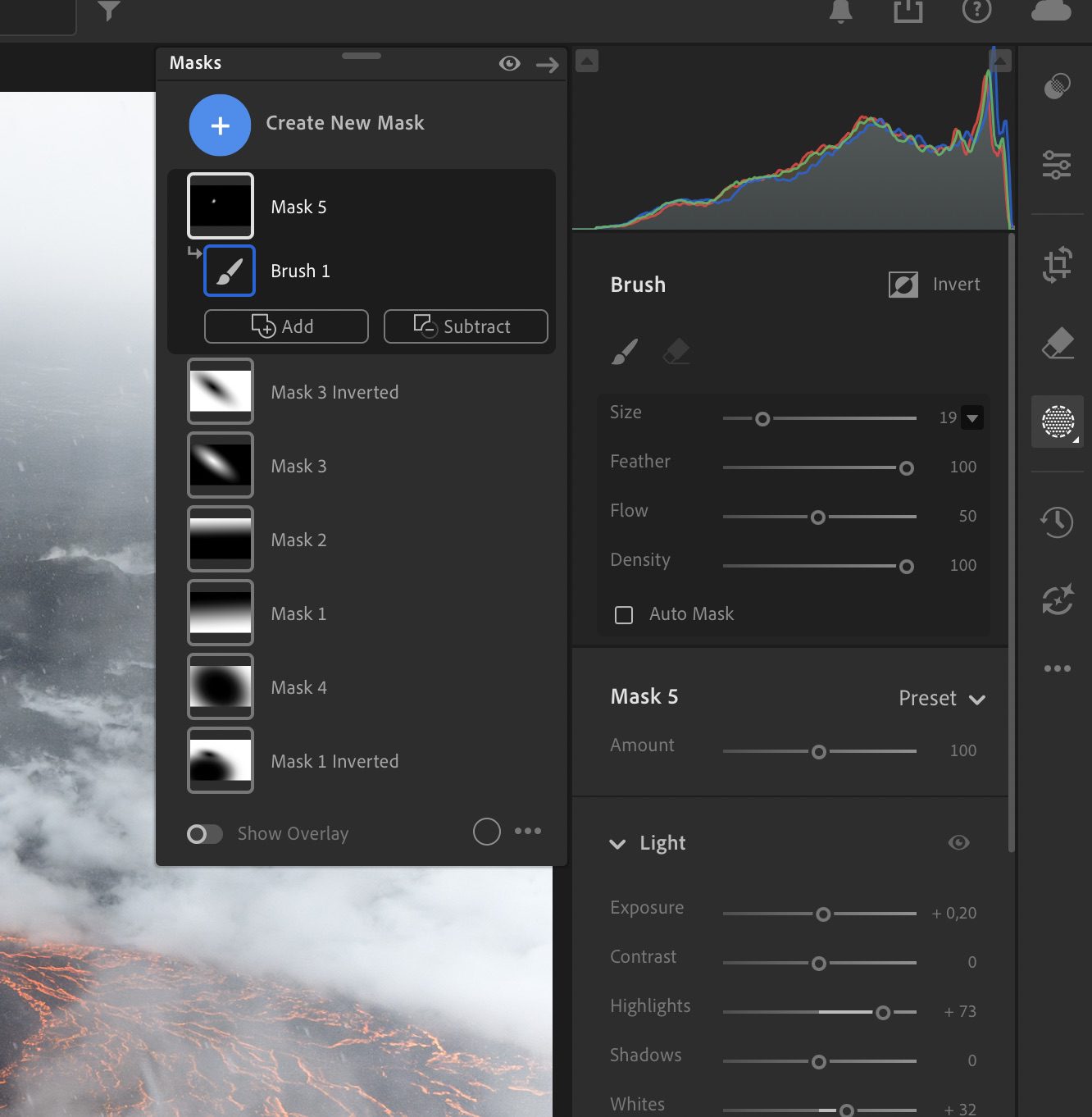
Cloud has had access to all the newer advancement that also came to Classic but …
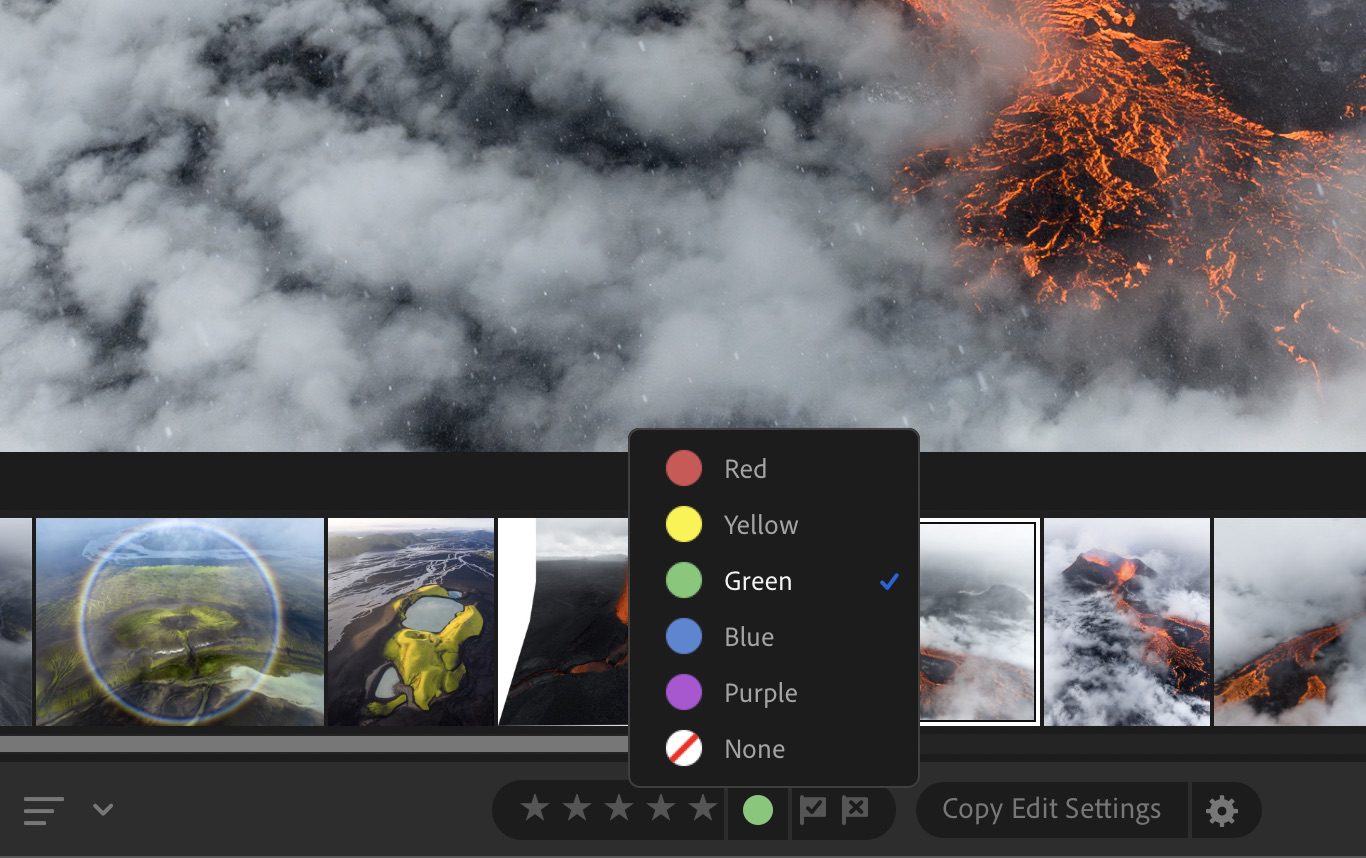
… Adobe has also been implementing functionality that has been a part of Classic for a while.
Final Thoughts
While the start was rocky, Lightroom (Cloud) has come a long, long way. It has made my editing workflow faster, safer, and more enjoyable. It lets me spend more time outdoors doing what I love: creating. I don’t have to worry about backups, not having access to my files remotely, and I don’t get frustrated by strange design choices in the software. Whether you’re a seasoned professional or an enthusiastic hobbyist, it’s worth giving Lightroom (Cloud) a try. You may find, like I did, that it does everything you need and makes your photography experience smoother than ever.
Discover Jeroen’s Photo Workshops in Iceland, Greenland & Beyond
Ready to take your photography to the next level? Join me, Jeroen Van Nieuwenhove, on unforgettable photo workshops in Iceland, Greenland, Antarctica and other exciting destinations. Whether your passion is wildlife photography, bird photography, landscape adventures, or mastering drone photography, each workshop is designed to give you hands-on guidance in some of the world’s most spectacular locations.
From puffins in the midnight sun to Arctic foxes in the wild, from glaciers and volcanoes to dramatic coastlines seen by drone – these journeys are more than workshops; they’re once-in-a-lifetime experiences. Group sizes are kept small, ensuring personal mentoring and plenty of shooting opportunities.
Looking for something specific? Check out Jeroen’s…
- Wildlife & Bird Photography Workshops (Puffins, Arctic Foxes)
- Drone Photography Workshops
- Photo Workshops in Iceland
- Photo Workshops in Greenland
- Photo Workshops in Antarctica
Spots are limited – secure your place today!
Are You Looking For A Specific Photo Workshop?
Support Jeroen’s Work
As an independent photographer, Jeroen partially relies on your support to keep producing worthwhile content such as blogs, photographs, books and much more. If you want to support his work, it is possible to do so by buying his e-books & books or prints.
You can also sign up to the newsletter to stay up to date on new blog posts, projects, workshops and other interesting information.
Thank you for considering!